How to make remarkable videos with Seedance 2.0
how-to-guide
How to make remarkable videos with Seedance 2.0
Seedance 2.0 Deep Dive: A Comprehensive Tutorial for AI Video Generation
AI video generation has moved from experimental novelty to a practical production tool. Seedance 2.0 sits at the center of this shift, offering creators a way to turn text prompts and reference images into motion footage with surprising speed and coherence. But "remarkable" output doesn't come from pressing a button—it comes from understanding the workflow, planning before you generate, and refining with intention. This deep dive provides a comprehensive tutorial for Seedance 2.0, covering everything from pre-production planning to advanced techniques, real-world lessons, and responsible evaluation. Whether you're a beginner or an intermediate developer exploring AI visual content creation, this guide will help you build repeatable, high-quality video workflows.
What Seedance 2.0 Can Do for Remarkable Video Production

Seedance 2.0 is an AI video generator that transforms textual descriptions and visual references into short motion clips. Unlike early models that produced flickering, morphing artifacts, Seedance 2.0 focuses on temporal consistency, scene composition, and style adherence. In practice, this means you can iterate on creative ideas rapidly—generating multiple variations of a shot, testing camera angles, and exploring visual moods without a full production crew. "Remarkable" here means three things: output quality that holds up on a screen, storytelling that communicates the intended message, and brand fit that aligns with visual identity. Seedance 2.0 doesn't replace cinematographers or editors; it compresses the exploration phase and makes motion prototyping accessible.
Understanding the Seedance 2.0 Workflow

The high-level creation loop is straightforward: you provide a prompt or reference input, the model generates a clip, you review the result, refine your prompt or settings, export the clip, and then move into post-production. This loop is iterative—most projects require several rounds of generation before a shot is usable. Seedance 2.0 acts as one component within a broader visual production pipeline that includes storyboarding, asset management, editing, color grading, and audio. Treating it as part of that pipeline, rather than a standalone magic box, is the first step toward professional results.
Key Capabilities of the AI Video Generator
Seedance 2.0 supports motion generation for subjects and environments, scene composition with controllable framing, and visual style control through descriptive language. Iteration speed is a major advantage—short clips can be generated in seconds to minutes depending on resolution and duration. Export considerations matter: you'll want to check supported formats, resolutions, and whether the tool outputs video files ready for editing software. A common mistake is assuming the AI handles everything; in reality, it produces raw material that still needs human curation and post-production polish.
AI Visual Content Creation Use Cases

Where does Seedance 2.0 fit? Social media videos, product demos, concept trailers, storyboards, and experimental visuals are all viable. For social platforms, you can generate hook shots and B-roll quickly. For product demos, you might create animated explanations of features. Concept trailers benefit from rapid prototyping of dramatic scenes. Storyboards become motion sketches before committing to live action. For experimental visuals, the tool encourages creative risk-taking without financial risk. Naturally, complementing Seedance 2.0 with Imagine Pro—a tool for generating high-resolution concept frames, thumbnails, and storyboard visuals—can strengthen the pre-visualization phase. Imagine Pro helps you nail the look before you animate.
Planning a Remarkable Video Before You Create AI Videos

The quality of your AI video output is heavily influenced by the quality of your pre-production. Weak outputs often trace back to vague objectives, inconsistent visual references, or platform mismatches. Before opening Seedance 2.0, clarify what you're making and why.
Defining the Story, Audience, and Visual Direction
Start with a clear objective: are you informing, entertaining, or persuading? Identify your target audience and their preferences—pacing, tone, and visual complexity should match. Write a short script or scene brief that describes the action, setting, and emotional arc. Visual references are critical: collect stills, color palettes, and examples of camera work. A common pitfall is skipping this step and jumping straight to prompts. In practice, a one-page brief saves hours of regeneration later.
Building a Shot List and Storyboard with Imagine Pro
A shot list breaks your video into individual scenes or camera setups. For each shot, note the subject, action, framing, and duration. Storyboarding visualizes these shots. Imagine Pro can support AI visual content creation by generating high-resolution storyboard frames, moodboards, and reference stills. You can describe a scene and get multiple visual interpretations, then select the one that aligns with your direction. Many teams use Imagine Pro's free trial to test visual concepts before committing to animation. This step reduces ambiguity when you later write prompts for Seedance 2.0.
Choosing the Right Format, Length, and Platform
Platform specifications dictate aspect ratio (16:9, 9:16, 1:1), clip duration, and caption-safe areas. A vertical TikTok video needs different framing than a YouTube pre-roll. Format choices also affect prompt design: a 9:16 shot requires closer framing and more vertical motion. Keep clips short—3 to 8 seconds per shot is typical for AI generation; longer scenes increase complexity and artifact risk. Plan for captions by leaving safe zones at the bottom. When editing, you'll assemble these clips into a longer sequence.
Step-by-Step Seedance 2.0 Tutorial for Beginners
This section walks through the core production loop. Follow these steps sequentially to avoid feeling overwhelmed.
Setting Up a New Seedance 2.0 Project
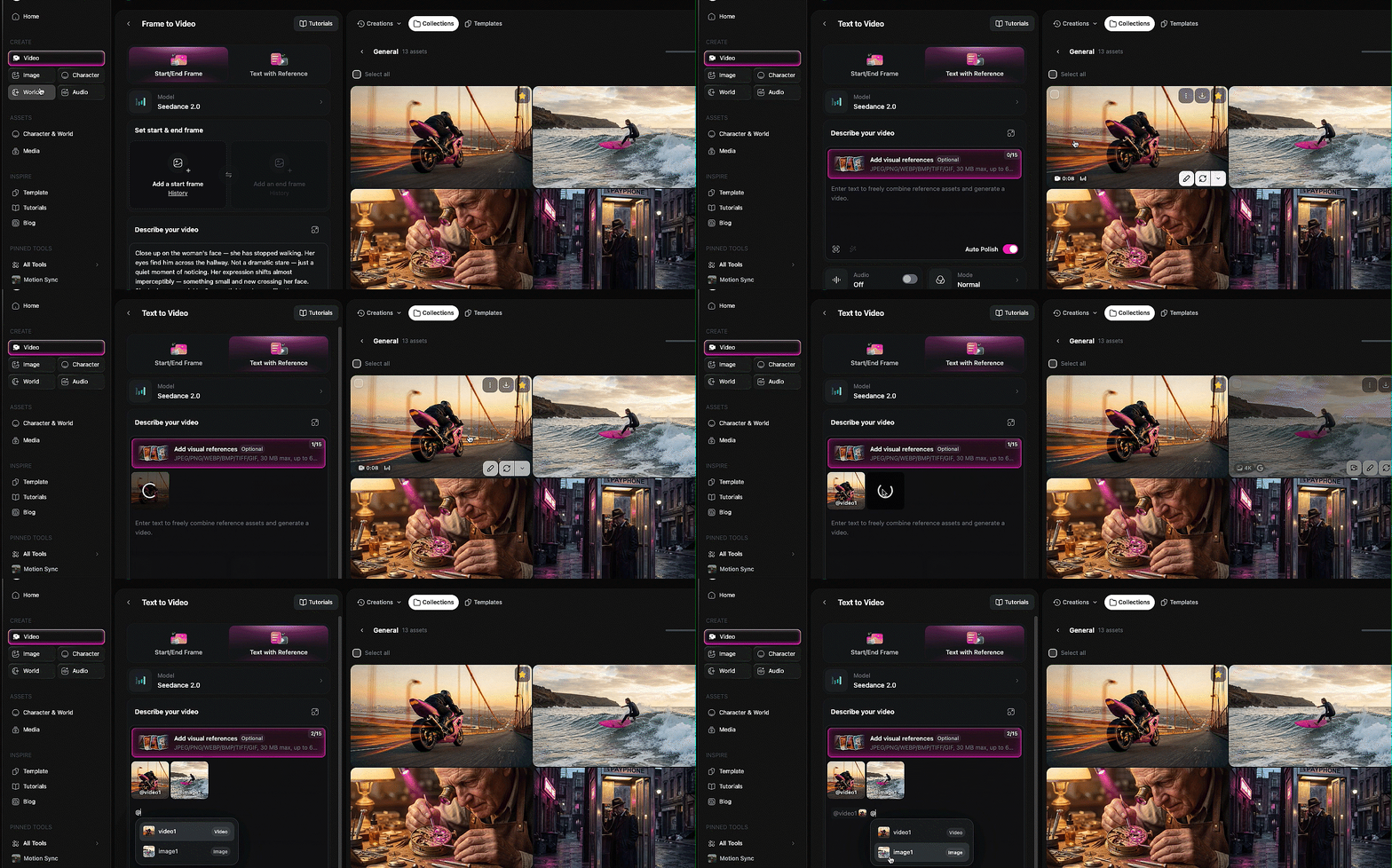
Most AI video tools follow a similar setup: create a project, choose a model version or generation preset, import any reference images, and organize assets into folders. In Seedance 2.0, begin by naming your project clearly (e.g., "ProductDemo_Shot01"). Set resolution and duration before generating—these choices affect render time and output quality. Import reference stills from your storyboard (including those from Imagine Pro) into the project's asset library. Organize files by scene or shot number to avoid confusion later.
Writing Prompts and Scene Instructions
A repeatable prompt formula helps maintain consistency. Use this structure:
[Subject] + [Action] + [Setting] + [Lighting] + [Camera angle] + [Style] + [Duration] + [Negative constraints]
For example, a clear prompt: "A ceramic coffee mug rotating slowly on a wooden table, soft morning light from the left, medium close-up, shallow depth of field, minimalist product photography style, 5 seconds, no text, no people." A vague prompt: "Coffee mug video, nice light." The difference in output is dramatic. In practice, specificity reduces unwanted surprises. Avoid overloading—too many constraints can confuse the model. Start with essential descriptors and add detail iteratively.
Generating, Reviewing, and Refining Clips
Generate your first pass. Review the clip immediately: check for motion artifacts, morphing, and adherence to your prompt. Compare multiple outputs side by side—most tools allow batch generation. Decide what to adjust: if the subject moves too fast, specify "slow motion" or "gentle rotation." If the lighting is wrong, refine the lighting description. Regenerate when the core composition is off; edit in post-production when the clip is 80% correct but needs trimming or color correction. A common mistake is regenerating endlessly for minor issues that editing can fix.
Exporting and Preparing Assets for Post-Production
Export your selected clips in the highest available resolution and a format compatible with your editor (e.g., MP4, ProRes). Use a consistent file naming convention:
ProjectName_SceneNumber_ShotNumber_TakeNumber.mp4Advanced Seedance 2.0 Tutorial Techniques for Polished Results
Once you're comfortable with the basics, these techniques improve consistency and control.
Prompt Engineering for Consistent Characters and Scenes
Consistency across shots is the hardest part of AI video generation. Use identical descriptors for recurring elements: if a character wears a "red hoodie," use that exact phrase every time. Reference images can anchor style—upload a frame from a previous shot and instruct the model to "match the style and character appearance." Some tools offer seed or style controls; use them to reduce visual drift. In practice, teams maintain a "prompt block" document with approved descriptors and copy-paste them into each generation.
Camera Movement, Lighting, and Style Controls
Describe camera moves precisely: "dolly in," "pan left," "tracking shot following subject," "handheld feel," "lens flare." For lighting, use mood terms: "golden hour," "soft diffused light," "harsh noir shadows." Color palette can be specified: "desaturated teal and orange." Avoid stacking too many camera and lighting terms—pick the two that matter most for the shot. Overloading creates confused outputs.
Iterating with Reference Frames and Imagine Pro Visuals
Imagine Pro excels at generating polished keyframes, look-development stills, and thumbnails that guide Seedance 2.0 generations. For visual consistency, create a high-resolution still that represents the exact look you want—color, composition, lighting—then use it as a reference image for your video prompt. This is especially useful for product shots or branded content where color accuracy matters. Imagine Pro's high-resolution output helps the video model understand fine details that text alone cannot convey.
Managing Continuity Across Multiple Shots
For multi-shot projects, establish a system: number every shot (e.g., 1A, 1B, 2A), maintain a style guide document, and use consistent asset naming. Create scene-level notes that summarize the look and feel of each scene. Before final generation, review a checklist: does every shot share the same color palette? Are character descriptions identical? Are camera angles complementary? This discipline prevents jarring transitions.
Best Practices for AI Video Generator Workflows
Translate isolated techniques into repeatable workflows that support efficiency and reliability.
Seedance 2.0 Tutorial Checklist for Smooth AI Video Generator Runs
Before generating final clips, run this pre-flight checklist: Is the prompt clear and specific? Are reference images high-quality and relevant? Is the duration appropriate (not too long)? Is the resolution set correctly for the target platform? Does the style align with your brief? Have you defined review criteria (e.g., no morphing, correct motion speed)? Answering these questions before generation saves hours.
Combining Seedance 2.0 with Other AI Visual Content Creation Tools
Seedance 2.0 is one tool in a larger ecosystem. Use image generation tools (including Imagine Pro for high-resolution stills and reference visuals), editing software for assembly and color grading, upscaling tools to increase final resolution, voiceover and caption generators for audio, and post-production tools for effects and compositing. A common workflow: generate keyframes in Imagine Pro, animate them in Seedance 2.0, then edit in Premiere or DaVinci Resolve. This complementary approach leverages each tool's strengths.
Quality Checks for Motion, Audio, and Brand Fit
Inspect every clip for flicker, morphing, unnatural motion artifacts, and scene continuity. Check brand color accuracy against your guidelines—AI models can drift. Ensure captions are readable and within safe areas. Watch the clip with sound (even if AI-generated audio is added later) to judge pacing. Finally, ask: does this shot serve the audience and the story? If not, regenerate or cut it.
Workflow Automation and Asset Organization
Set up a folder structure:
/Project/01_Refs/02_Generations/03_Exports/04_FinalReal-World Examples and Lessons from Production
Experience-based depth comes from showing how the workflow behaves outside ideal conditions.
Case Study: From Storyboard to Finished AI Video
A recent product launch video required a 30-second teaser. The team started with Imagine Pro to generate storyboard frames for three key shots: a close-up of the product, a user interaction, and a logo reveal. These frames guided Seedance 2.0 prompts. First-pass generations had inconsistent lighting—the product's color shifted between shots. The team tightened descriptors ("matte black finish, soft rim light") and used a reference frame from Imagine Pro as a style anchor. After two revision rounds and selecting 4 usable clips from 12 generations, they edited the sequence, added music and captions, and delivered. Constraint: AI could not generate realistic human hands, so they reframed shots to avoid close-ups of hands.
Common Pitfalls to Avoid When You Create AI Videos
Vague prompts produce generic results. Inconsistent references cause visual drift. Overlong scenes (over 10 seconds) increase artifacts. Ignoring platform specs—like aspect ratio or caption safe zones—undermines usability. Poor asset naming ("clip1.mp4") leads to lost files. Skipping post-production quality checks results in flicker or brand color mismatches. Each pitfall has a simple fix: plan, specify, check.
Mini Seedance 2.0 Tutorial: Troubleshooting a Weak Generation
Suppose a generated clip shows a car moving but the wheels don't rotate. Diagnose: the prompt said "car driving" but didn't specify "wheels spinning." Tighten the prompt: "A red sedan driving on a highway, wheels spinning rapidly, side tracking shot, daylight, realistic style." If the output still fails, change the reference image—use a still of a rotating wheel as a guide. Or reduce scene complexity: generate the car separately from the background, then composite. Regenerating specific shots is often faster than trying to fix everything in one prompt.
Lessons from High-Volume Visual Content Creation
Teams producing dozens of videos per month learn to batch: generate 10 variations of a shot at once, then select. Build a library of reusable prompt templates for common shot types (product close-up, person talking to camera, landscape establishing). Create a style guide with approved colors, camera language, and reference frames. Accept that human editing remains essential—AI handles the raw generation, but pacing, rhythm, and final polish require a human eye.
Expert Deep Dive: How Seedance 2.0 and AI Visual Content Creation Work Together
Deeper technical and strategic context helps you make informed decisions.
Under-the-Hood Considerations for AI Video Generation
Temporal consistency—maintaining object identity across frames—is why diffusion-based video models struggle with complex scenes. Scene complexity increases the model's working memory demand; a crowded street with many moving people is harder than a single rotating product. Reference quality matters: a blurry reference image yields blurry output. Prompt specificity reduces the model's uncertainty, leading to more coherent motion. Understanding these factors helps you avoid unrealistic expectations.
Performance, Resolution, and Export Trade-Offs
Higher resolution and longer clips increase render time exponentially. A 1080p 5-second clip might take 30 seconds; a 4K 10-second clip could take several minutes. Storage adds up quickly. Iteration speed drops with higher settings. In practice, generate low-resolution drafts for quick review, then upscale selected clips with a dedicated upscaler. This trade-off balances creative exploration with final quality.
When to Use Seedance 2.0 vs. Other AI Video Tools
Seedance 2.0 excels at stylized, short-form motion with strong creative control. Other AI video generators may specialize in realistic human avatars or long-form narrative. Complementary tools like Imagine Pro are not video replacements—they generate images, which can be used as references or keyframes. If your project requires photorealistic humans with lip-sync, you might pair Seedance 2.0 with a talking-head tool. Choose based on shot type, not brand loyalty.
Building a Repeatable Visual Style Guide
Document everything: approved prompt templates, color hex codes, camera movement vocabulary ("slow dolly in," "whip pan"), reference frames from Imagine Pro, and review standards (e.g., "no more than 2% color drift from brand palette"). Share this guide with your team. A style guide transforms AI generation from a guessing game into a controllable craft.
Authority and Trust: Evaluating Results and Official Guidance
Credibility comes from knowing limitations and using the tool responsibly.
What to Check in Official Documentation and Release Notes
Always verify features, limits, export options, and model updates in the official documentation and release notes. Claims about resolution, duration, or style support should be confirmed. Since no external links were provided for this article, check the vendor's website directly. Pay attention to version numbers and dates—AI video tools evolve quickly.
Pros and Cons of Using Seedance 2.0
Pros: fast iteration, creative flexibility, accessible entry point, good for stylized content. Cons: consistency challenges across shots, requires post-production, can produce motion artifacts, limited control over fine details. Production fit depends on your tolerance for iteration and the complexity of your shot list.
Performance Benchmarks and Quality Benchmarks
Evaluate motion realism (do objects move naturally?), scene coherence (does the background remain stable?), prompt adherence (did the model follow your instructions?), export quality (resolution, compression artifacts), iteration time (seconds per generation), and final editability (can you trim and color-grade without breaking?). Create a simple scorecard and test new model versions against it.
Rights, Licensing, and Responsible AI Content Creation
Check commercial-use terms for generated content. Disclose AI involvement where required by platform or law. Obtain consent for likenesses—do not generate real people without permission. Be aware of bias in training data and avoid harmful stereotypes. Ensure brand safety by reviewing outputs for unintended content. Responsible use builds trust with audiences and clients.
Seedance 2.0 offers a powerful entry point into AI video generation, but remarkable results come from disciplined planning, iterative prompting, and thoughtful post-production. Use this comprehensive tutorial as your roadmap—plan before you generate, refine with intention, and always verify outputs against your creative and brand standards. With practice, you'll turn Seedance 2.0 from a novelty into a reliable part of your visual content creation toolkit.