Wan 3.0 in ComfyUI: Native 30-Second Video with Omni-Reference Control
tutorial
Wan 3.0 in ComfyUI: Native 30-Second Video with Omni-Reference Control
Wan 3.0 ComfyUI Workflow: Generate 30-Second AI Video with Reference Control
Wan 3.0 has quickly become one of the most exciting options for AI video generation. It supports native 30-second clips, impressive temporal consistency, and reference-driven control that lets you keep characters and styles stable across an entire shot. The catch is that getting the best results requires a flexible and transparent environment. That's where a Wan 3.0 ComfyUI workflow comes in.
ComfyUI gives you complete control over the generative pipeline. You can inspect every node, adjust samplers, swap models, and iterate without fighting against hidden presets. This article is a deep dive into building a reliable Wan 3.0 ComfyUI workflow, from setup to troubleshooting. By the end, you'll have a practical system for generating cinematic video clips—and for using reference images to keep everything consistent.
1. Understanding Wan 3.0 and Why ComfyUI Is the Ideal Environment

1.1 What Wan 3.0 Brings to AI Video Generation
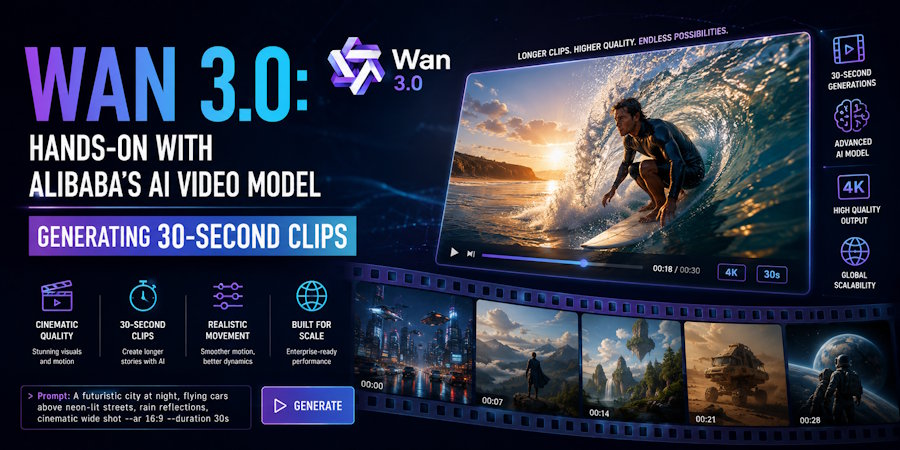
Wan 3.0 represents a major step forward for AI video generators. Earlier models often struggled with anything longer than a few seconds, but Wan 3.0 is designed around longer sequences. It can generate a full 30-second clip in a single pass, which opens up short films, product demos, and narrative scenes that previously required stitching many clips together.
The biggest improvements are in temporal consistency. Objects and characters stay recognizable from frame one to frame sixty or beyond. The video model also supports reference-driven control. Instead of typing vague descriptions like "an old man in a cloak," you can provide an actual image that defines the character's face, clothing, or environment. Wan 3.0 uses that reference to guide the entire generation process.
This matters for practical workflows. If you're producing content for clients, you cannot afford to have a character change hair color halfway through a scene. With Wan 3.0's reference controls, you can ground the output in a specific visual source. This makes the model much more useful than a pure text-to-video generator.
1.2 Why ComfyUI Is the Go-To AI Video Generator Canvas
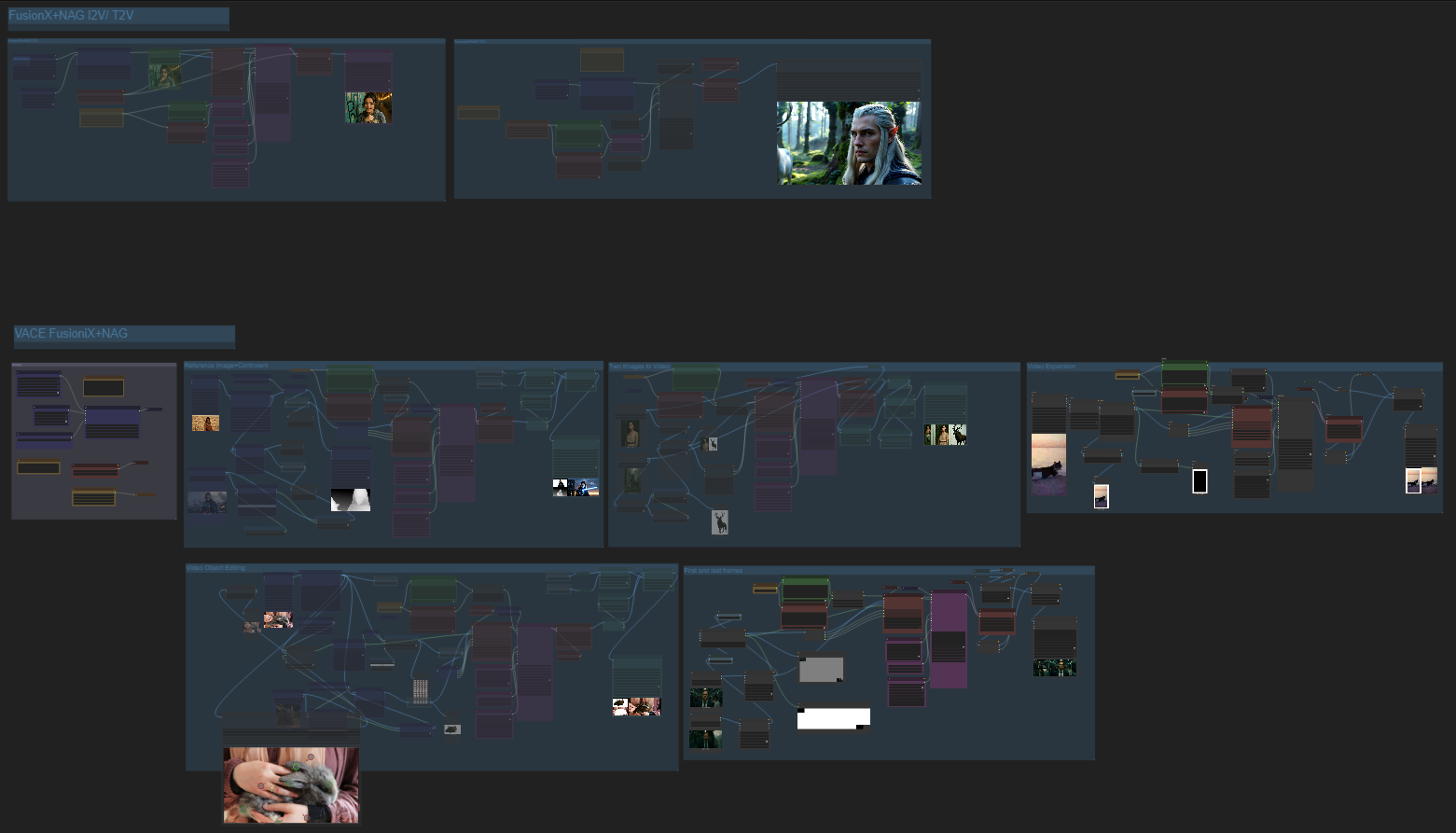
ComfyUI started as an image generation tool, but it has become one of the best environments for AI video generation. Its node-based interface lets you connect models, loaders, samplers, and output nodes visually. You can see exactly what data flows where. If something breaks, you know which node is responsible.
That transparency is huge for video work. Video generation requires more moving pieces than image generation: text encoders, reference image loaders, video VAEs, frame interpolators, and output formats all need to play nicely together. In ComfyUI, you can build a pipeline once and then experiment with individual components. Want to test a different scheduler? Just swap the node. Need to isolate the reference encoder? Disconnect it temporarily.
ComfyUI's community support is another advantage. Custom nodes appear quickly after new models are released. For Wan 3.0, the community has already built wrapper nodes and workflow templates that make it possible to run the model locally. If you're serious about AI video generation, ComfyUI is the best place to work because it gives you power, flexibility, and an active ecosystem.
1.3 How Wan 3.0 and Imagine Pro Complement Each Other
Wan 3.0 handles video, but video often starts with a still image. That's where Imagine Pro comes in. Imagine Pro is an AI-powered image tool that generates photorealistic and fantasy stills in seconds. It is especially useful for creating reference frames, concept art, and style guides that you can feed into your Wan 3.0 ComfyUI workflow.
Many video creators overlook this connection. They try to generate a video directly from text, then wonder why the character looks generic. A better approach is to create a strong reference image in Imagine Pro first. You can refine the exact features, lighting, and composition of a character. Then you load that image into Wan 3.0 as a reference. The result is video that inherits the quality of the reference image.
Imagine Pro also has a free trial, which makes it easy to experiment. You can generate a few character concepts, pick the strongest one, and use it as the visual anchor for your video project. Later in this guide, I'll show you exactly how to combine Imagine Pro with Wan 3.0 for a complete production pipeline.
2. Prerequisites and Setup for Wan 3.0 in ComfyUI
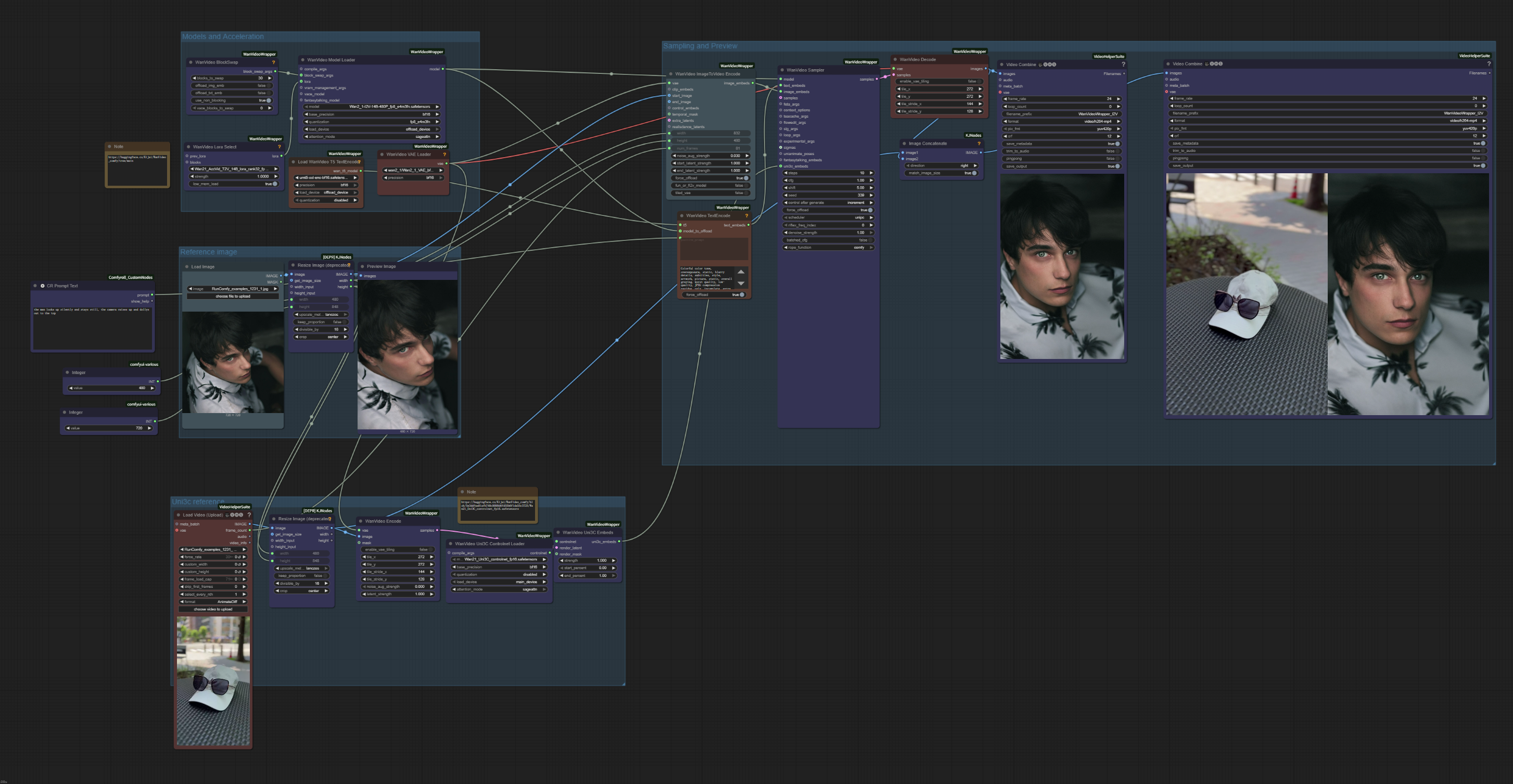
2.1 Hardware and Software Checklist
Before you start building a Wan 3.0 ComfyUI workflow, you need a system that can handle the workload. Wan 3.0 is memory-hungry because it processes many frames at once. Here's what you need to know.
Minimum requirements for running Wan 3.0 locally:
- GPU with at least 12GB VRAM
- 32GB system RAM
- Windows 11 or Linux with recent NVIDIA drivers
- Python 3.10 or later for ComfyUI
- About 50GB of free disk space for models and dependencies
Recommended specifications:
- GPU with 16GB VRAM or more
- 64GB system RAM
- NVIDIA RTX 3090, 4090, or newer
- Fast NVMe SSD for model loading
If your GPU has less than 16GB VRAM, you may still generate short clips or use the tiled VAE decoder to distribute memory pressure. But a 30-second clip at high resolution will be difficult without enough VRAM. In practice, 16GB VRAM is the sweet spot for smooth iteration.
2.2 Installing ComfyUI and the Wan 3.0 Node Pack
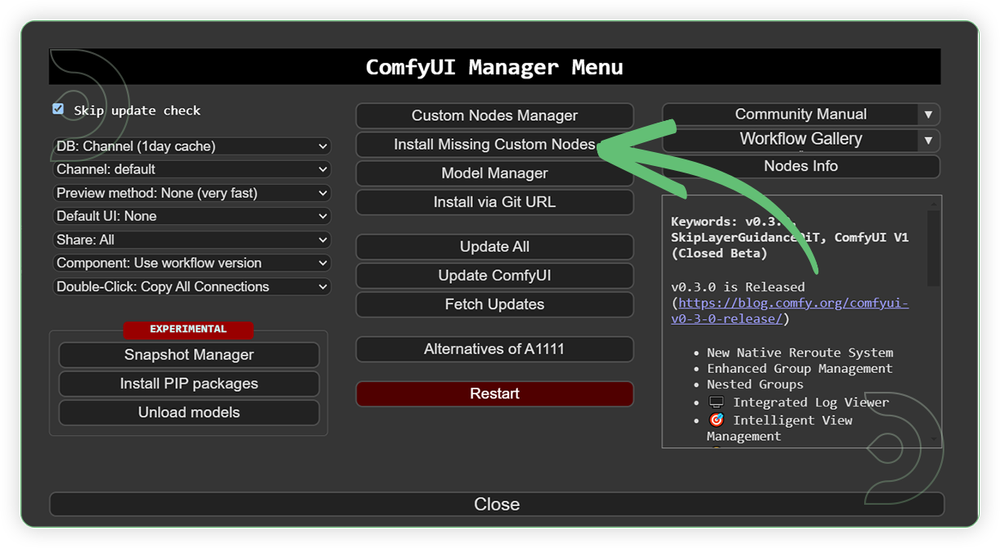
The easiest way to run ComfyUI is with the official one-click installer for Windows. If you are on Linux, you can clone the ComfyUI repository and install dependencies with a virtual environment. For this article, I'll assume you have ComfyUI running and can see the default workflow.
Once ComfyUI is ready, you need to install the custom nodes that support Wan 3.0. The exact package name depends on which implementation you choose, but most workflows use a "Wan Video" or "Wan 3.0" custom node pack from the ComfyUI community. You can install these through ComfyUI Manager.
Next, download the Wan 3.0 model files. There are usually three components:
- The main diffusion model (the video generation model)
- The text encoder (used to turn your prompt into token embeddings)
- The VAE (used to decode latent frames into actual video pixels)
Place the model files in ComfyUI's
modelsComfyUI/ models/ diffusion_models/wan3.0_30s_model.safetensors text_encoders/wan3.0_text_encoder/ vae/wan3.0_vae.safetensors
Some distributions package the text encoder separately. Follow the official instructions for the specific repo you are using. If you use ComfyUI Manager, most node packs include installation notes.
2.3 Verifying the Wan 3.0 ComfyUI Workflow Environment
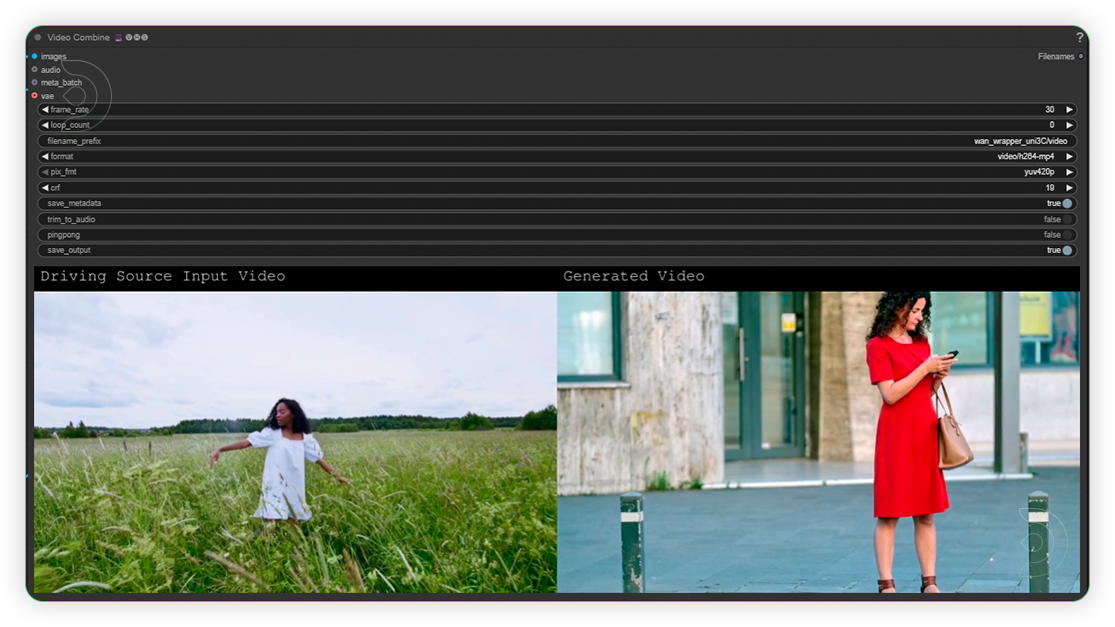
Before you build a complex sequence, run a simple text-to-video test. This verifies that all models load correctly and that the node connections are valid.
Create a minimal workflow with these nodes:
- Load Diffusion Model
- Load Text Encoder
- Load VAE
- Text Prompt (positive and negative)
- Sampler
- VAEDecode
- Save Video
Connect them in order, then queue the prompt. If the video renders without errors, your environment is ready. If you see a model-loading error, double-check the paths and file names. If you get a CUDA out-of-memory error, try lowering the resolution or reducing the batch size. A simple test clip takes only a few minutes and saves you from troubleshooting a larger workflow later.
3. Building an Efficient Wan 3.0 ComfyUI Workflow
This is the technical heart of your Wan 3.0 ComfyUI workflow. A well-structured graph makes experimentation easy and prevents frustrating round-trips through corrupted node chains.
3.1 Core Nodes and Models for Wan 3.0 Video Generation
Every Wan 3.0 workflow relies on the same set of core nodes:
Model Loader. This node loads the diffusion model checkpoint or Safetensors file. For Wan 3.0, you want a checkpoint specifically trained for video generation. Image-only models will not produce coherent motion.
Text Encoder. The text encoder transforms your prompt into embeddings that guide the diffusion process. Wan 3.0 uses a large-scale language model encoder, so be careful to load the matching version. Using the wrong text encoder is a common cause of garbled output.
Reference Loader. If you want to use reference images, this node takes still images and encodes them into the condition. Wan 3.0 may have separate loaders for character reference, style reference, and composition reference.
Sampler. This node denoises the latent video. It controls how many steps are taken, the noise schedule, and the randomness of the output.
VAE Decoder. The VAE converts the denoised latent array into a sequence of RGB frames. This is often the most memory-intensive part of the process.
Video Output. This node assembles frames into a playable video file, typically MP4 or WebM.
Understanding the data flow is key. The prompt and reference images are encoded into conditioning signals. These signals guide the diffusion model as it generates noisy latents. The sampler iteratively removes noise, and the VAE turns the final latents into frames.
3.2 Step-by-Step: Native 30-Second Video from Text Prompt
To generate a native 30-second video in ComfyUI, you need to configure your workflow for the correct number of frames and duration. Wan 3.0 supports long sequences, but you still need to set the frame count explicitly.
A typical configuration looks like this:
Frame Count: 720
FPS: 24
Width: 720
Height: 1280
This gives you exactly 30 seconds because 720 frames divided by 24 frames per second equals 30 seconds. The resolution is up to you, but 720x1280 is a reasonable starting point for portrait video. Higher resolutions require more VRAM and longer generation times.
In ComfyUI, these settings often appear in a "Empty Latent" node. If your workflow uses a dedicated Wan 3.0 video latent node, the frame count may be called
num_framesThe generation process is otherwise similar to image generation. You write the prompt, set the sampler, and queue the job. The difference is that the model must maintain consistency across hundreds of frames, so the sampler settings matter much more here than in image workflows.
3.3 Sampler and Scheduler Settings That Matter
Sampler settings affect video quality in ways that are not as obvious in image generation. For Wan 3.0, I recommend starting with the
eulersimpleuni_pcThe number of steps is a trade-off between speed and quality. For a 30-second clip, 20 to 30 steps is a good range. Fewer than 20 steps often produces flickering and motion artifacts. More than 30 steps increases generation time without a noticeable quality gain.
The seed also matters. If you generate a clip and the motion looks odd, change the seed rather than the entire prompt. In my experience, the same prompt across different seeds can produce wildly different camera moves. Keep a list of seeds that work for specific styles.
One hidden insight: text-to-video models treat the prompt as a global description, not as a script. If you want the camera to push in during the final five seconds, the prompt needs to describe that action in simple terms. We'll get to prompt design in Section 5.
4. Mastering Omni-Reference Control in Wan 3.0
4.1 What Is Omni-Reference Control and Why It Matters
Omni-Reference Control is Wan 3.0's ability to use one or more reference images during video generation. Instead of hoping the model hears your words correctly, you show it exactly what you want. This is especially important for video because a human face must remain recognizable over many frames.
Omni-Reference Control is not just a single image insert. You can reference different aspects of the output. For example:
- A character reference image locks the identity and appearance of a person or creature.
- A style reference image controls the artistic direction, such as oil painting or cinematic photography.
- A composition reference image helps define camera angles and scene structure.
When used together, these references create a strong constraint. Wan 3.0 can generate a 30-second video where the character looks like your original concept, the style matches your mood board, and the composition follows your intended framing.
4.2 Preparing Reference Images for Consistent Characters and Styles
The quality of your reference images determines the upper bound of your video quality. A blurry, low-resolution reference image will produce a blurry, inconsistent video. On the other hand, a clean, well-lit reference image gives the model a clear signal.
I recommend generating reference images with a dedicated image tool like Imagine Pro. This lets you create exactly the character you need without hunting through stock sources. For example, you can prompt Imagine Pro for "a female knight with silver armor and a glowing blue sword, cinematic lighting, portrait view." In a few seconds, you have a consistent reference frame.
When preparing reference images, follow these practical rules:
- Crop the image to the aspect ratio you plan to use for video.
- Avoid multiple characters in the reference image unless you want multiple references.
- Make sure the subject's face is visible and well lit.
- Keep the image resolution high, ideally above 1024x1024 pixels.
If you need a style reference, it can be a texture, a painting, or a still from a movie. The model does not need a photorealistic image; it needs a clear signal of color, contrast, and texture.
4.3 Fine-Tuning Reference Strength in ComfyUI
A common mistake is to treat reference strength as a single global setting. In a sophisticated Wan 3.0 ComfyUI workflow, you can control the influence of each reference image separately. Some implementations expose separate weight nodes for character reference, layout reference, and style reference.
Here's a practical approach:
Start with a character reference strength of 0.7. This gives enough guidance to keep the face consistent without overpowering the motion generation. If the character begins to drift after a few seconds, raise the strength to 0.85. If the video looks too rigid or static, lower it to 0.5.
Style reference strength is different. Styles are more diffuse, so they often need lower weights. A style weight of 0.4 is usually enough to color the output without making it look like a forced filter.
The hidden insight here is that reference strength controls the model's attention in a spatial and temporal way. A strong reference can suppress motion because the model tries too hard to copy the still frame. A weak reference allows the video to move freely but may lose identity. The right balance depends on your project.
5. Hands-On Wan 3.0 Video Model Tutorial: Creating a 30-Second Clip
This section is a practical Wan 3.0 video model tutorial. Follow along with your ComfyUI setup and create a complete 30-second video.
5.1 Prompt Design for Wan 3.0 Video Generation
Video prompts need to describe time, motion, and camera behavior. A prompt like "a knight in armor" is too static. The model needs to know what happens over those 30 seconds.
Here's a structure that works well:
- Subject and environment: Who or what is in the scene.
- Action: What happens during the clip.
- Camera movement: How the camera moves or stays still.
- Atmosphere and lighting: The mood and visual tone.
An example prompt:
A female knight in silver armor stands in a misty forest. She slowly draws a glowing blue sword. The camera pushes in toward her face. Cinematic lighting, volumetric fog, lens flare, high detail, 4K style.
Keep the prompt focused. Do not cram in too many scene changes. Wan 3.0 works best when there is one continuous action or a simple sequence. When the prompt jumps between unrelated events, the model may generate abrupt cuts or distorted transitions.
5.2 Running the Workflow and Monitoring Output
Once your workflow is set up and your prompt is ready, click the Queue button in ComfyUI. The generation will start, and you'll see progress as the samplers work through the latent noise.
During the run, watch the ComfyUI console for errors. If you see a CUDA out-of-memory error, the generation stops immediately. To avoid this, reduce the frame count temporarily or enable CPU offloading in the advanced settings.
One useful trick is to monitor intermediate outputs. Some video workflows allow you to preview every nth frame. This gives you a rough idea of where the video is heading before it finishes. If the motion looks broken from the start, stop the generation, adjust the prompt, and start again.
In practice, a 30-second clip at 720x1280 with 25 steps can take anywhere from 10 minutes to an hour depending on your GPU. Be patient. The first run is rarely perfect. Generate short test clips first, then scale up to the full 30 seconds.
5.3 Real-World Example: From Text Prompt to Full Video
Here is a concrete example from my own testing. I used Imagine Pro to generate a reference image of a "young wizard with white hair, purple robes, standing in a library." The image was a character portrait, ideal for a reference frame.
In ComfyUI, I set up my Wan 3.0 workflow with the following settings:
- Resolution: 832 x 640
- Frame count: 720
- FPS: 24
- Sampler: euler
- Scheduler: simple
- Steps: 25
- Character reference strength: 0.75
My prompt was:
A young wizard stands in an ancient library. He looks up from a glowing book, and the books around him begin to float. The camera slowly orbits around him. Warm candlelight, dust particles in the air, cinematic composition.
The output was a 30-second clip with consistent character design. The wizard's face stayed stable throughout, and the floating books created a believable magical effect. There were a few moments where the robe flickered in the background, but the overall result was strong enough to use as a concept clip.
The important lesson is that the reference image carried the identity. Without the reference, the wizard's face would likely have changed within the first few seconds. This is exactly why Omni-Reference Control is such a powerful feature.
6. Troubleshooting a Wan 3.0 ComfyUI Workflow
Even a well-built workflow will hit problems. Here is how to handle the most common ones.
6.1 Memory and Performance Issues
The biggest complaint is out-of-memory errors. Wan 3.0 uses a lot of VRAM because it processes hundreds of frames as a single latent tensor. If you run out of memory, try these fixes:
- Lower the resolution to 672x384.
- Reduce frame count to 480 and interpolate later.
- Enable tiled VAE decoding to split the decoding step into smaller chunks.
- Use the CPU offload option for the model loader.
- Close other GPU-heavy applications.
In ComfyUI, there is also a
--lowvram6.2 Reference Drift and Inconsistency
When a character changes appearance midway through a video, this is often called reference drift. It happens when the reference influence is too weak or when the model loses context over long sequences.
To fix it:
- Increase the character reference strength.
- Use time-dependent reference weights if your node pack supports them.
- Shorten the generation length and stitch multiple clips together.
- Make sure the reference image is a frontal, clear shot of the subject.
Some workflows also allow you to pass the same reference image at multiple intervals. This anchors the video model at different points in time, reducing the chance of drift.
6.3 Output Artifacts and Quality Fixes
Flickering is one of the most annoying artifacts in AI video. It appears as a shimmering or flickering texture across frames. This often comes from too few sampling steps. Try increasing from 20 to 30 steps. If you use a fast scheduler, switch to
simplenormalWarped faces are common when the character is small in the frame. The best fix is to compose closer shots or use a higher resolution. You can also crop the reference image so the face fills more of the frame.
Duplicated limbs and morphing body parts are usually the result of ambiguous prompts. Make your prompt more explicit about the character's body position and movement. For example, "walking forward with arms at her sides" is clearer than "walking."
7. Performance Benchmarks and Best Practices for Creators
7.1 Benchmarks: Speed, Quality, and Hardware Demands
Performance depends heavily on hardware. On an NVIDIA RTX 4090, a 5-second clip at 640x384 might take about five minutes. A full 30-second clip at the same resolution can take 20 to 40 minutes. On a 12GB GPU, expect two to three times as long.
Quality also scales with resolution. At 480p, fine details like fingers and hair strands are often soft. At 720p, the model preserves more texture, but the memory cost increases significantly. I recommend starting at low resolution for tests, then moving to 720p for final renders.
7.2 When to Use Wan 3.0 (and When Not To)
Wan 3.0 is excellent for concept videos, mood scenes, and narrative shots that rely on atmosphere. It is also great for generating reference loops, background plates, and social media content.
But it is not the best tool for every video task. If you need precise lip-sync dialogue, consider a dedicated talking-head model. If you need to render a digital character with exact brand guidelines, a more controllable animation pipeline might be better. And if your video is mostly a static image with small movements, an image animator will be faster and cheaper.
Be honest about the model's limits. Wan 3.0 is still an AI generator. It can create surprising, cinematic footage, but it can also fail at physics, complex interactions, and fine details. Plan your projects around its strengths.
7.3 ComfyUI Generative AI for Creators: Industry Best Practices
Creators who consistently produce good results with ComfyUI follow a few simple practices.
First, pin your versions. ComfyUI updates fast, and custom nodes can break after an update. Use the ComfyUI Manager to lock versions or save your environment configuration.
Second, export your workflows. ComfyUI lets you save the entire workflow as JSON. Share this with collaborators or keep it in your project folder. This is the best way to ensure reproducibility.
Third, keep your reference image library organized. Name files clearly, such as
character_wizard_back.pngstyle_cyberpunk_neon.pngFinally, render in chunks when necessary. If your GPU cannot handle a 30-second clip, generate three 10-second clips and stitch them together in your video editor. This is a common community practice and works well.
8. Extending Your Video Workflow with Imagine Pro and Beyond
8.1 Using Imagine Pro to Create Reference Images for Wan 3.0
The synergy between Imagine Pro and Wan 3.0 is one of the most efficient creative loops available today. Imagine Pro generates high-quality stills in seconds, which means you can rapidly iterate on character concepts, color palettes, and scene compositions. Once you are happy with a still, feed it into your Wan 3.0 ComfyUI workflow as a reference image.
For example, you can use Imagine Pro to generate a diverse set of character portraits for a story. You might create a "desert raider" character in one image, a "cybernetic healer" in another, and a "spirit fox" in a third. Each image becomes a reusable reference asset for future video clips.
With the free trial, you have a low-friction way to test this workflow. You can generate a few character sheets, build a small library, and test how Wan 3.0 responds to different reference styles.
8.2 Combining AI-Generated Stills and Video for Richer Stories
A video project does not have to be one continuous clip. You can combine high-resolution stills from Imagine Pro with Wan 3.0 video clips to build a compelling storyboard or an animated sequence.
Consider making a shot list. Start with a series of key frames generated in Imagine Pro. These frames define the critical moments in your story. Then use Wan 3.0 to animate the space between those moments. You can also use stills as title cards, transitions, or alternate angles.
This hybrid approach is especially valuable for creators producing short films, game trailers, or music videos. Instead of generating a long video that might drift off course, you direct the story with stills and let Wan 3.0 handle the motion.
8.3 Customizing a Wan 3.0 ComfyUI Workflow for New Creative Projects
The beauty of a Wan 3.0 ComfyUI workflow is that it is reusable. Once you have a reliable base, you can adapt it for new projects with minimal effort.
Try these experiments:
- Multi-reference scenes where a character reference and a style reference are combined.
- Style transfer by using a painting as the style reference while keeping a real character as the subject.
- Animated shots where the camera moves through a landscape, guided by a composition reference.
- Character consistency across multiple clips by using the same subject reference for all of them.
The key is to treat each project as a small production. Define your references, write your prompts carefully, and keep your settings documented. Over time, you will develop your own set of custom workflows that produce beautiful, on-brand video content.
Wan 3.0 is a powerful AI video generator, and ComfyUI gives you the control to make it truly yours. Whether you are creating character-driven narratives, conceptual visuals, or stylized social clips, combining direct generation with reference-driven control will take your work to the next level. Start with Imagine Pro for reference creation, build a solid Wan 3.0 ComfyUI workflow, and let your imagination drive the final cut.