Strapi Setup Guide
Connect SEOmate with your Strapi CMS to publish content directly
TL;DR - Quick Setup Path
Access Strapi Admin Panel
→Create API Token
→Copy Token & URL
→Configure in SEOmate
Navigate to your Strapi admin at
your-domain.com/admin
, create a full-access API token, and configure the integration in SEOmate's publishing settings.
Requirements
✓ Strapi admin access
✓ A Strapi instance with content types configured
✓ API tokens enabled in your Strapi configuration
Setup Steps
Step 1: Identify Your Content Type
First, you need to identify the content type in Strapi where you want to publish your blog posts or articles.
Access your Strapi admin panel and navigate to Content Manager.
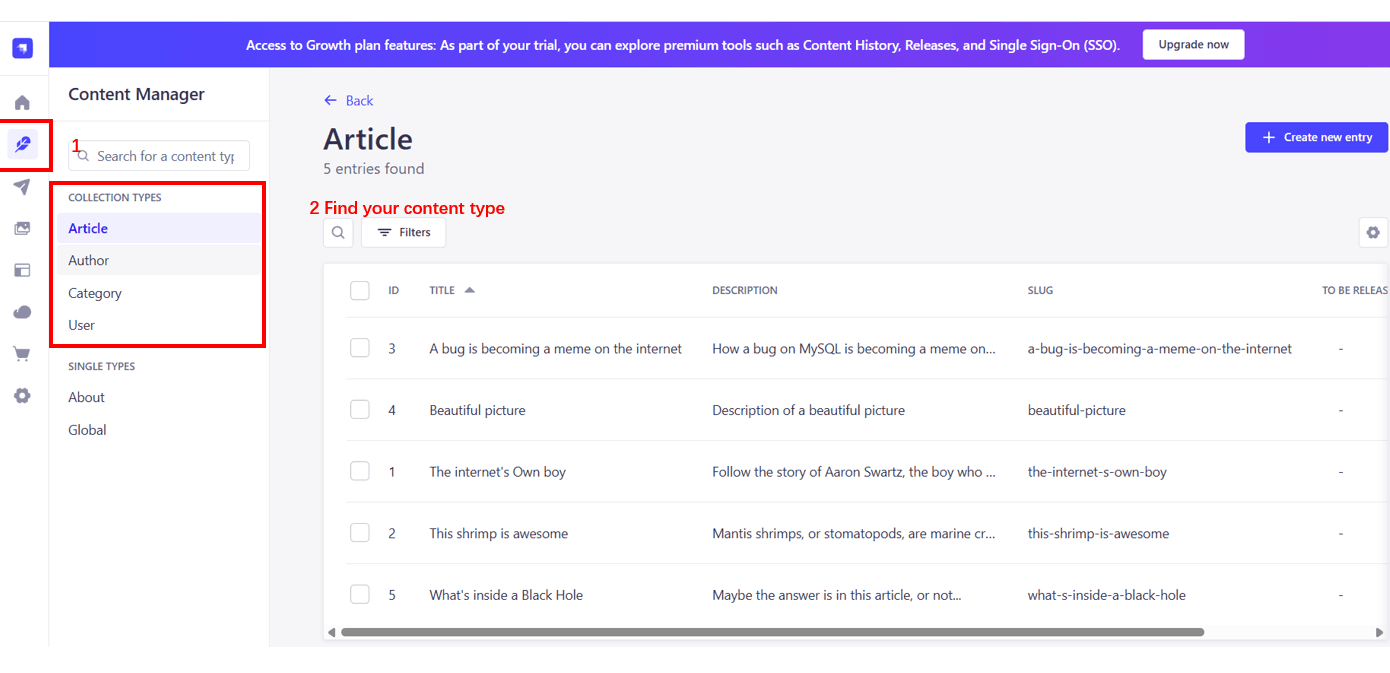
Look for your blog or article content type in the left sidebar. Common names include:
- Articles or Article
- Posts or Post
- Blogs or Blog
- Or any custom content type you've created
Make note of the exact name as you'll need it for the integration setup.
Step 2: Create API Token
Navigate to Settings → API Tokens in your Strapi admin panel.
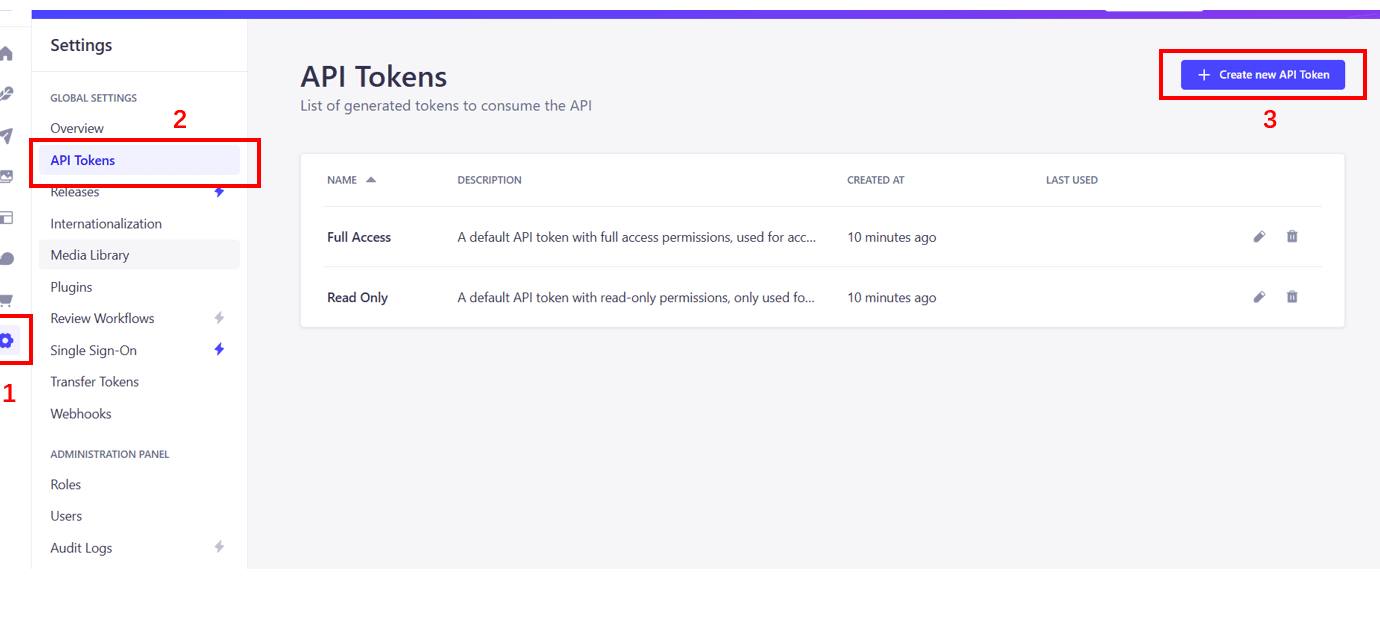
Click the Create new API Token button to create a new token.
Token configuration:
- Name: Enter
SEOmate Integration - Description: Optional description for future reference
- Token duration: Choose based on your security preferences
- Token type: Select Full access for complete functionality
Step 3: Configure Token Permissions
When creating the API token, you need to set the appropriate permissions for SEOmate to work properly.
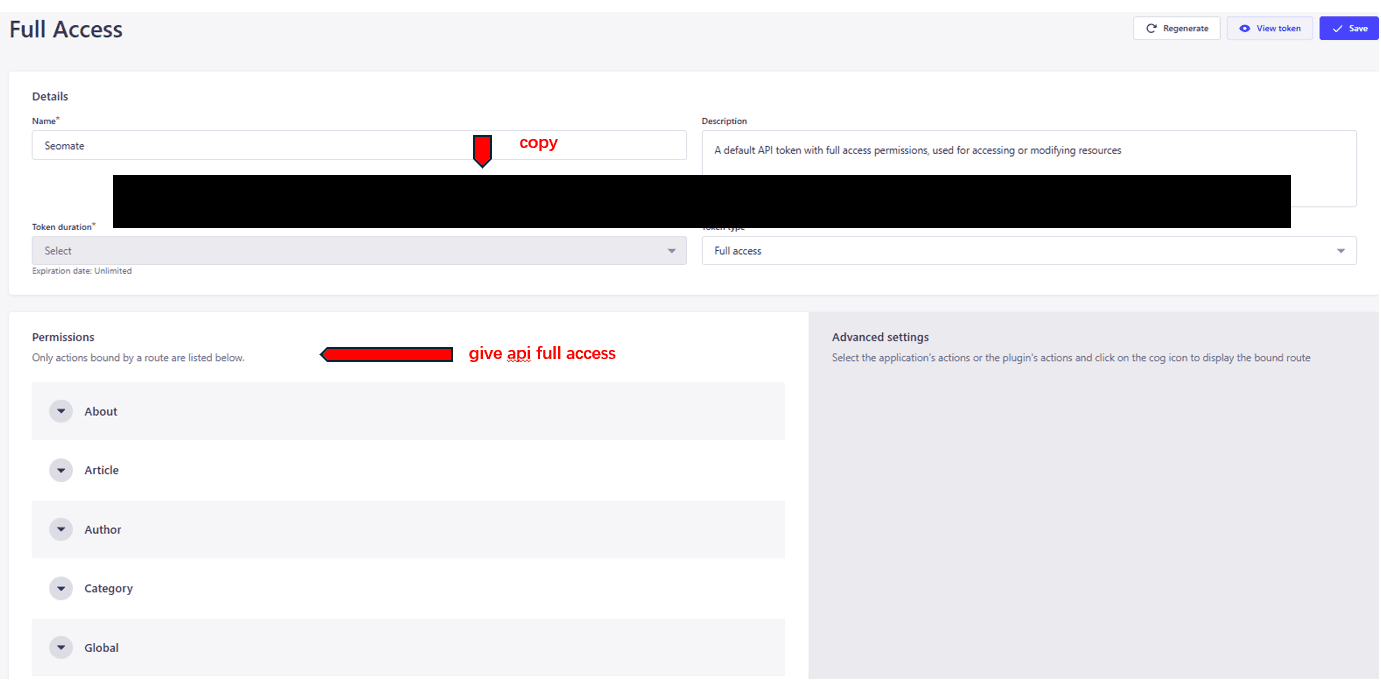
Required permissions:
- Full access is recommended for seamless integration
- Alternatively, you can set custom permissions:
- Create entries in your content type
- Read entries for validation
- Update entries for editing
- Delete entries (optional)
Click Save to create the token.
Security reminder: The API token provides access to your Strapi content. Keep it secure and don't share it publicly. Consider using environment-specific tokens for different deployments.
Step 4: Copy API Token and Configure in SEOmate
After creating the token, copy it immediately as you won't be able to see it again.
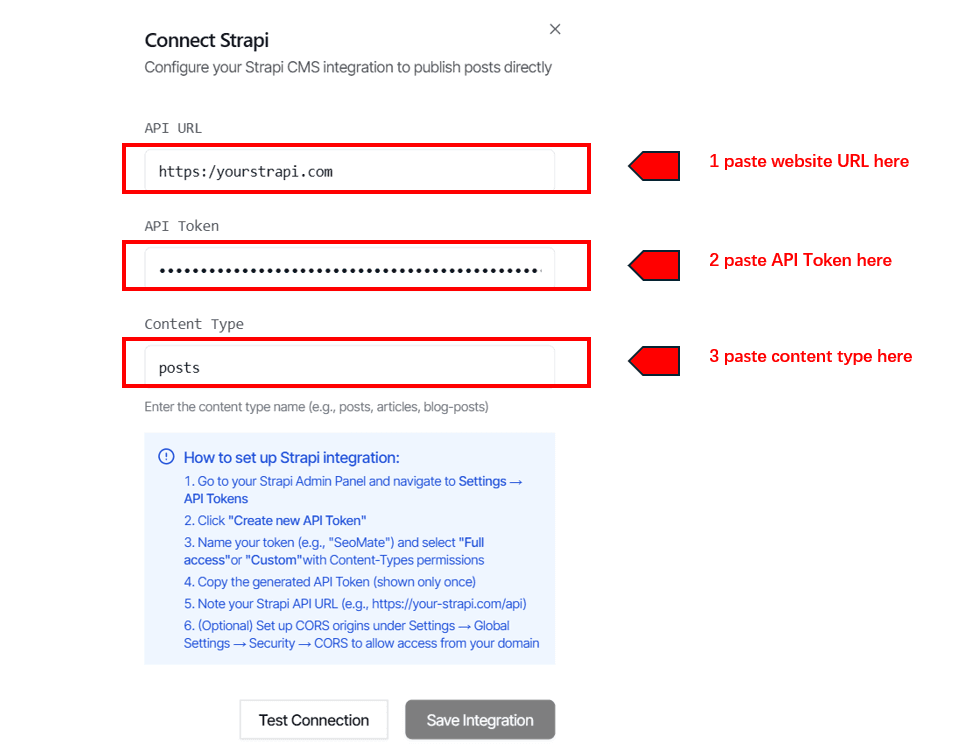
Now configure the integration in SEOmate:
- Go to Project Settings → Publishing Platforms
- Click Add Strapi Integration
- Fill in the required information:
- Strapi URL: Your Strapi instance URL (e.g.,
https://your-domain.comorhttp://localhost:1337) - API Token: Paste the token you just created
- Content Type: Enter the exact name of your content type (e.g.,
article,post)
- Strapi URL: Your Strapi instance URL (e.g.,
- Click Test Connection to verify the configuration
- Configure field mapping (SEOmate will auto-detect most fields)
- Click Save Integration
Content Type Note: Make sure your Strapi content type has the necessary fields like title, content/body, slug, and any other fields you want to map from SEOmate.
Configuration Reference
strapi_xxxxxx...
https://your-domain.com
articlev4Troubleshooting FAQ
API Token invalid
Check that the token was copied completely with no extra spaces. Ensure the token has the correct permissions (Full access or custom permissions for your content type).
Connection timeout
Verify your Strapi URL is correct and accessible. Make sure your Strapi instance is running and the API is enabled.
Content type not found
Double-check the content type name matches exactly what's defined in your Strapi admin panel. Content type names are case-sensitive.
Permission denied errors
Ensure your API token has the necessary permissions (create, read, update) for the specific content type you're trying to use.
Field mapping issues
Make sure your Strapi content type has the required fields. You can customize field mapping in SEOmate to match your content type structure.
Ready to connect Strapi?
Follow the steps above to configure your integration and start publishing AI-generated content to your Strapi CMS.