Connect Wix to SeoMate
Publish AI-generated content directly to your Wix blog
TL;DR - Quick Setup Path
Wix Dashboard
→Settings
→Advanced
→API Keys
→Generate API Key
Generate an API key with Blog permissions for publishing content. Takes about 3 minutes.
Prerequisites
✓ Wix website with admin access
✓ Wix Blog app installed and activated
✓ Your Wix Site ID
Step-by-Step Setup
Step 1: Navigate to API Keys
Go directly to the API Keys page:
Open Wix API Keys Page
Or manually navigate:
- Log in to your Wix Dashboard
- Go to Settings → Advanced → API Keys
- Click Generate API Key
Step 2: Name Your API Key
Enter a descriptive name for your API key (e.g., "SEOMATE"):
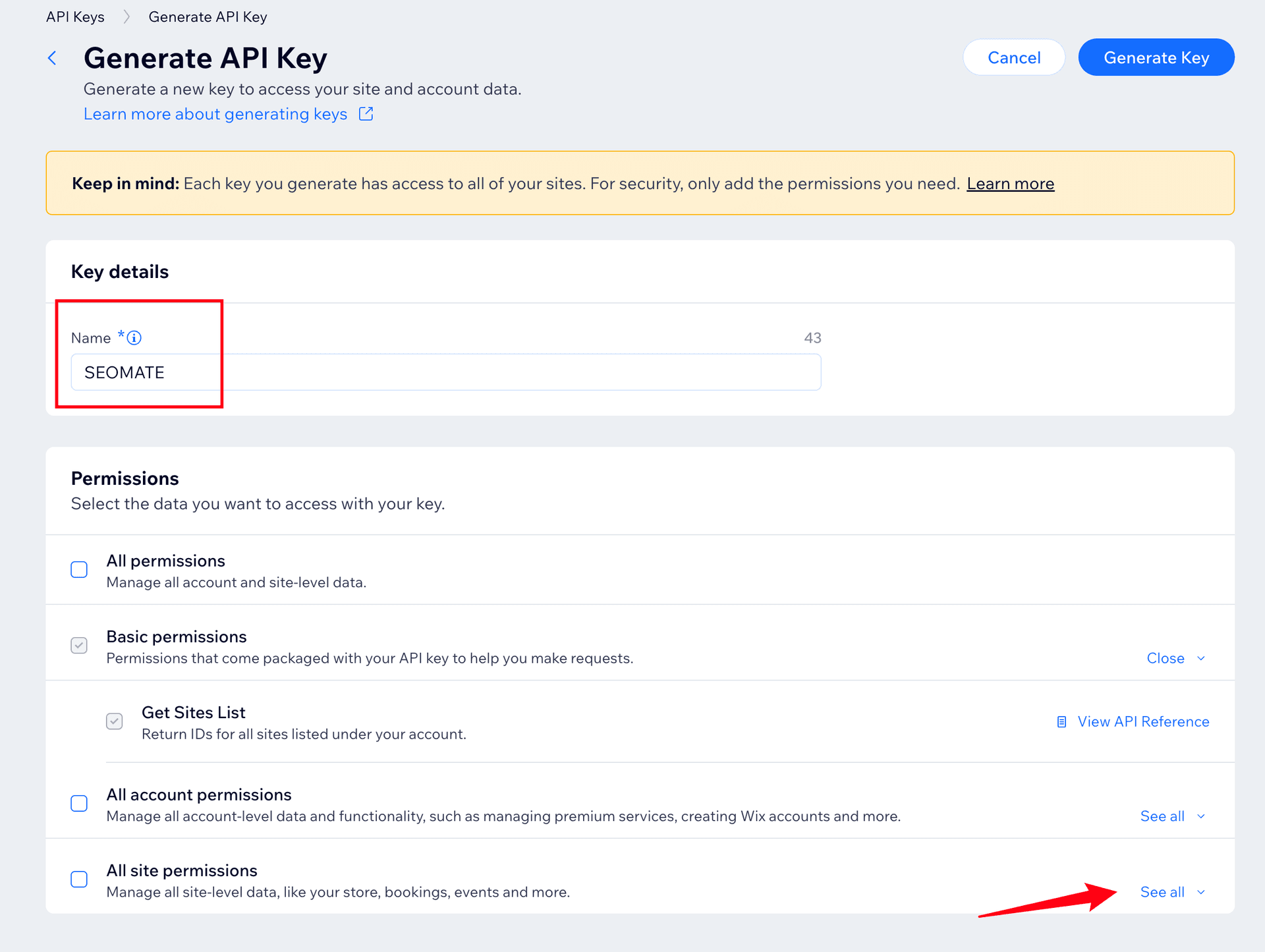
Each API key has access to all your sites. For security, only add the permissions you need.
Step 3: Select Permissions
Scroll down to find Wix Blog in the permissions list and check the box:
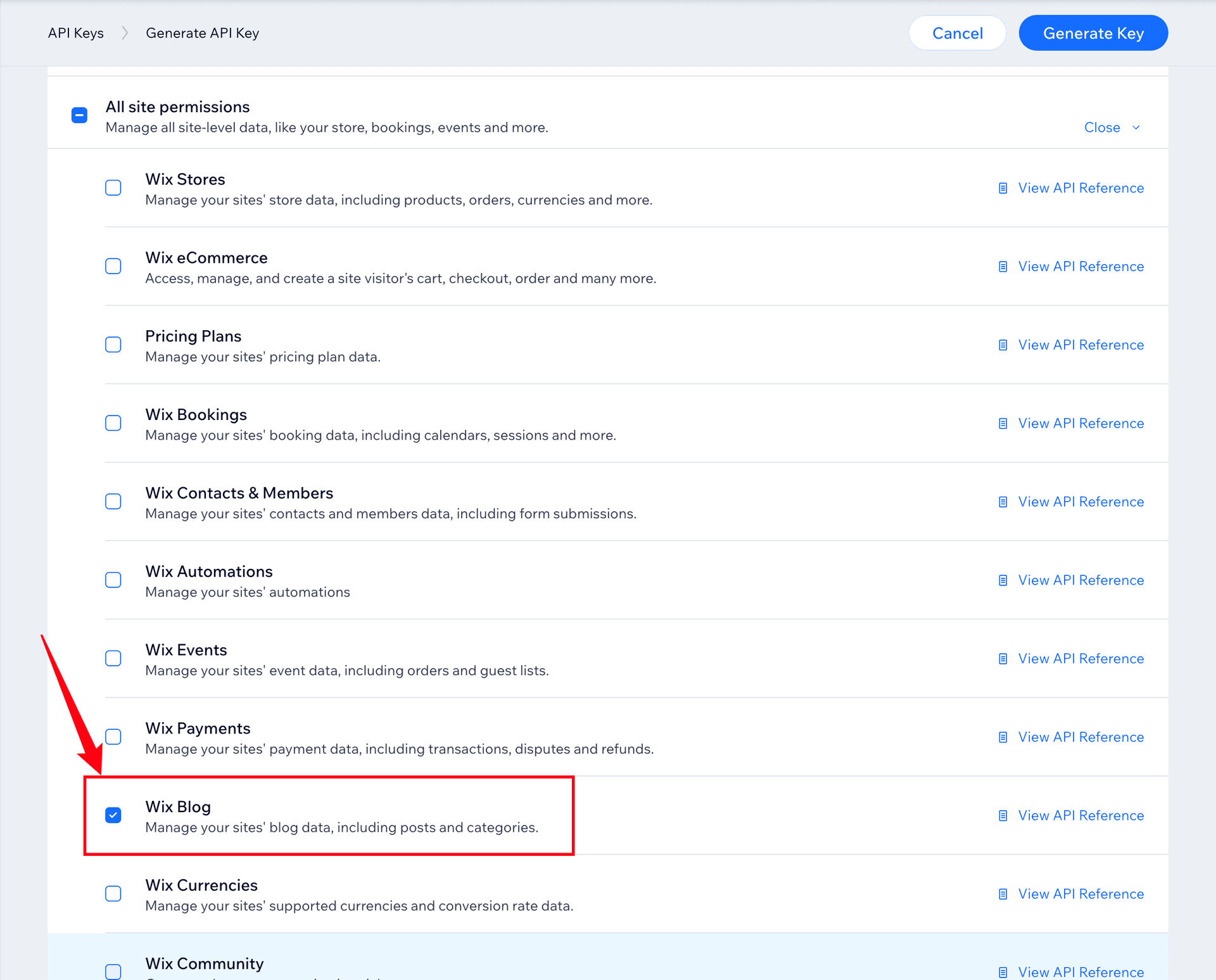
Make sure "Wix Blog" is checked - this allows SeoMate to create and manage blog posts.
Step 4: Generate the API Key
After selecting permissions, click the Generate Key button:

After clicking Generate Key, Wix will send a confirmation email to your account email address. Check your inbox and click the confirmation link to proceed.
Step 5: Copy Your API Key
After email confirmation, you'll see your generated API key. Click Copy Token & Close:
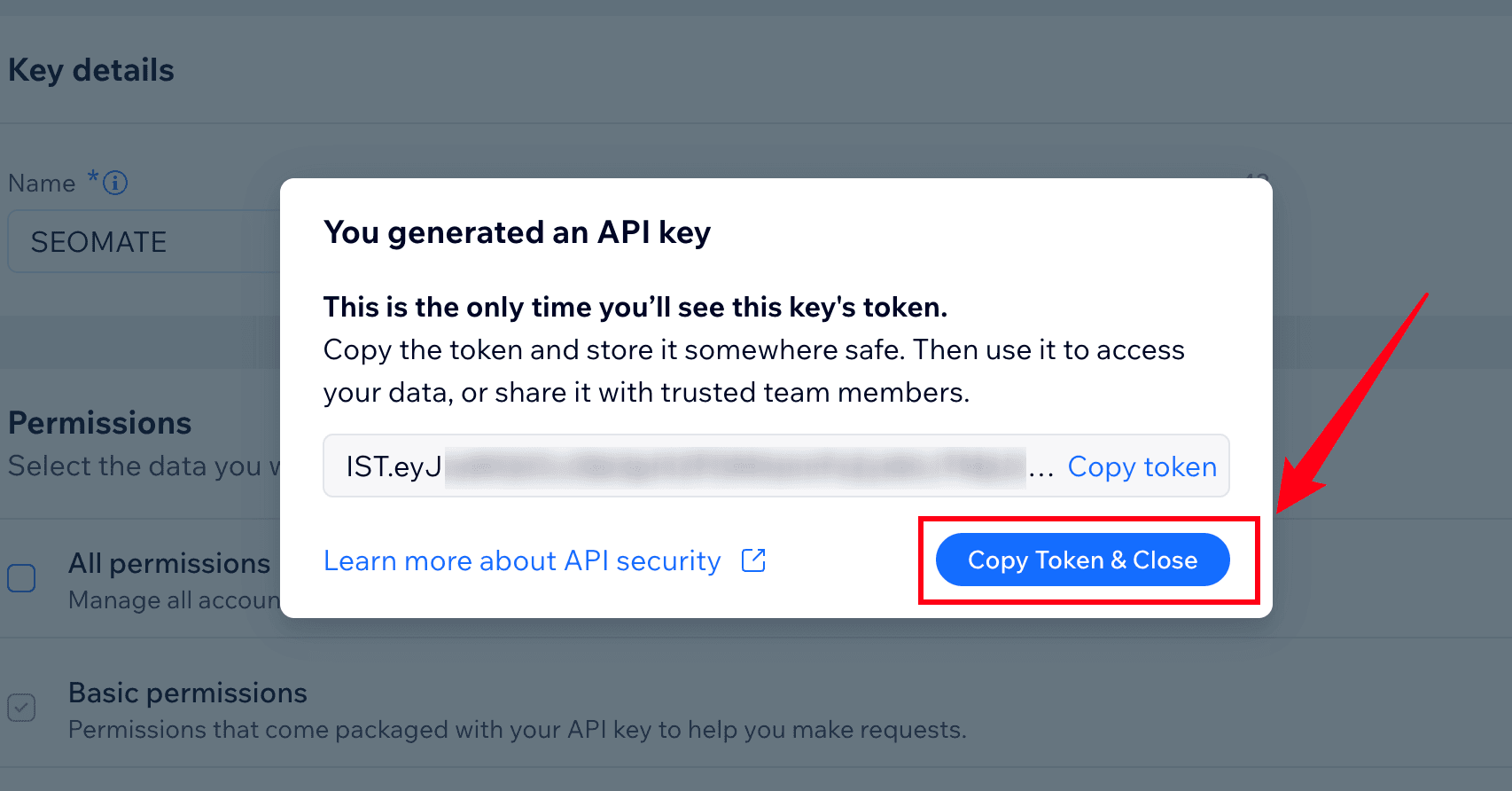
This is the only time you'll see this key's token. Copy it immediately and store it somewhere safe. You cannot view it again after closing this dialog.
Step 6: Get Your Site ID
You'll need your Wix Site ID to complete the integration. Here's how to find it:
For Wix-hosted sites:
https://username.wixsite.com/sitename
The Site ID is typically the subdomain part before .wixsite.com
For custom domains:
- Go to your Wix Dashboard
- Navigate to Settings → General Info
- Find your Site ID listed there
If you use a custom domain, the Site ID won't be visible in the URL. Check your Wix Dashboard settings to find it.
Step 7: Configure in SeoMate
Now add your Wix integration to SeoMate:
- Go to Settings → Publishing
- Click Connect Wix
- Enter your credentials:
- Site ID: Your Wix site identifier
- API Key: The key you just copied
- Integration Name: A friendly name for this connection
Step 8: Test and Save
- Click Test Connection to verify your setup
- Once successful, click Save Integration
Integration Complete!
Your Wix blog is now connected to SeoMate. You can start publishing AI-generated content directly to your site.
Ready to Connect Wix?
Follow the steps above to integrate your Wix blog with SeoMate and start automating your content publishing.