WordPress Setup Guide
Connect SEOmate with your WordPress site to publish content directly
TL;DR - Quick Setup Path
WordPress Admin
→Users
→Your Profile
→Application Passwords
Generate an Application Password and use it with your WordPress username to connect.
Requirements
✓ WordPress 6.7.1 or higher
✓ Administrator account access
✓ REST API enabled (default)
Setup Steps
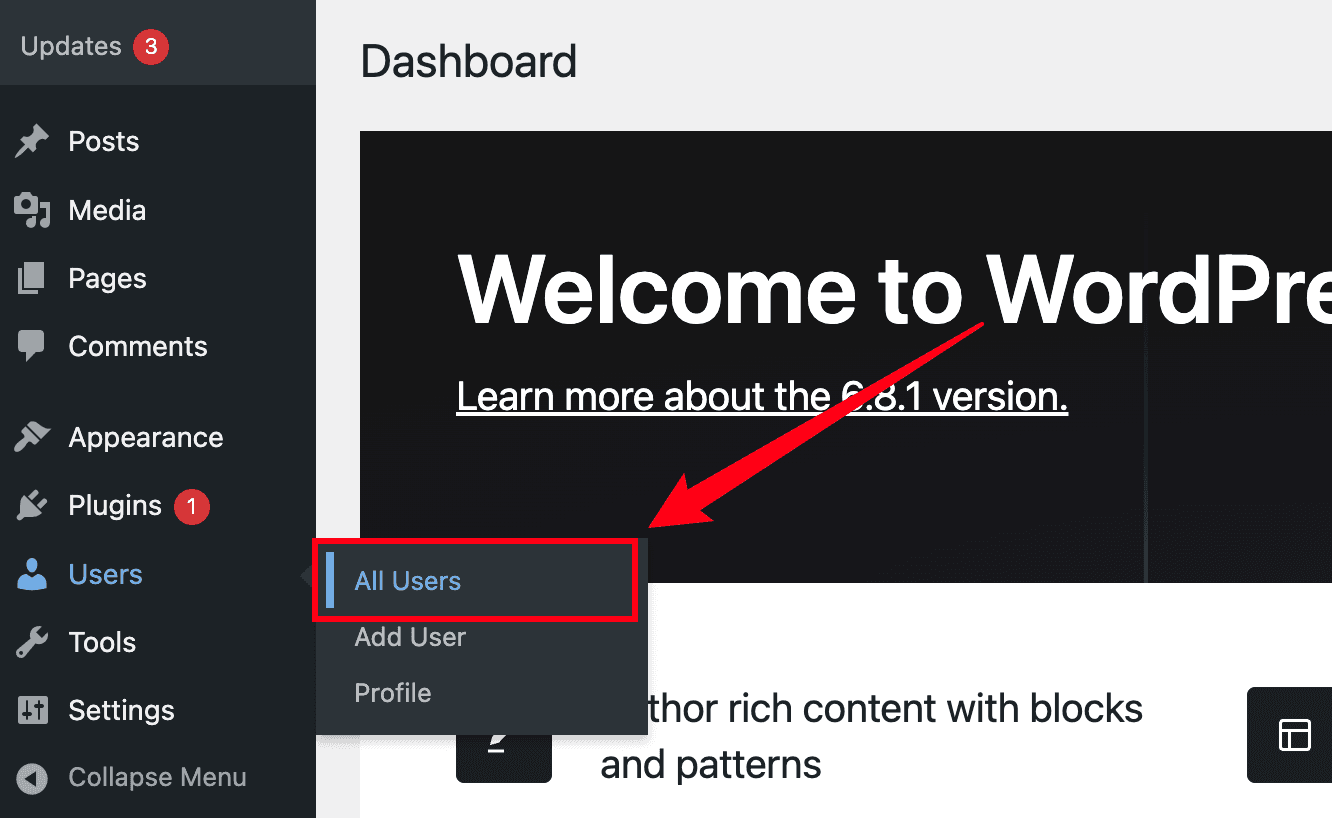
Step 1: Navigate to Users
Access your WordPress admin dashboard and click Users → All Users in the sidebar.
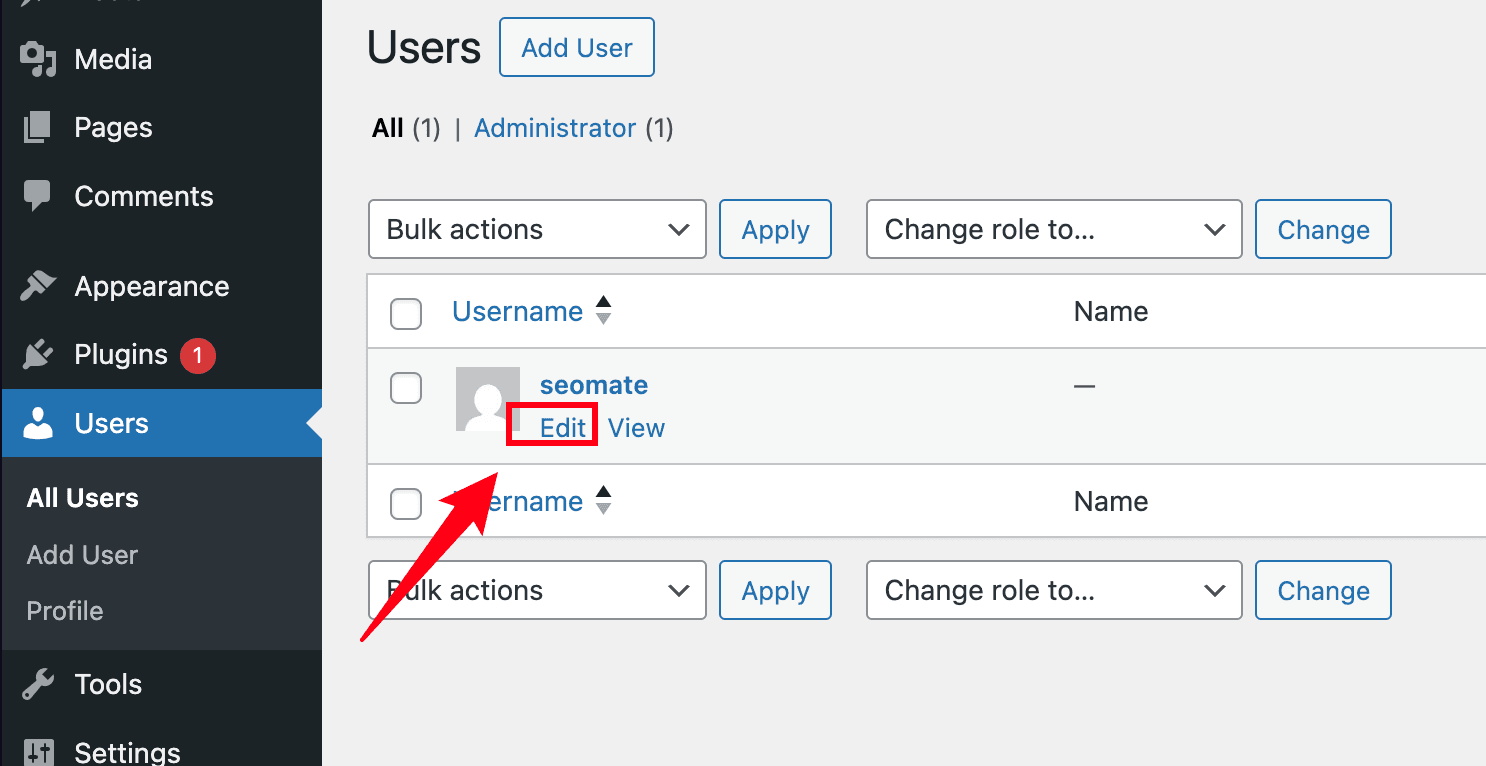
Step 2: Edit Your User
Find your administrator account in the list and click Edit.
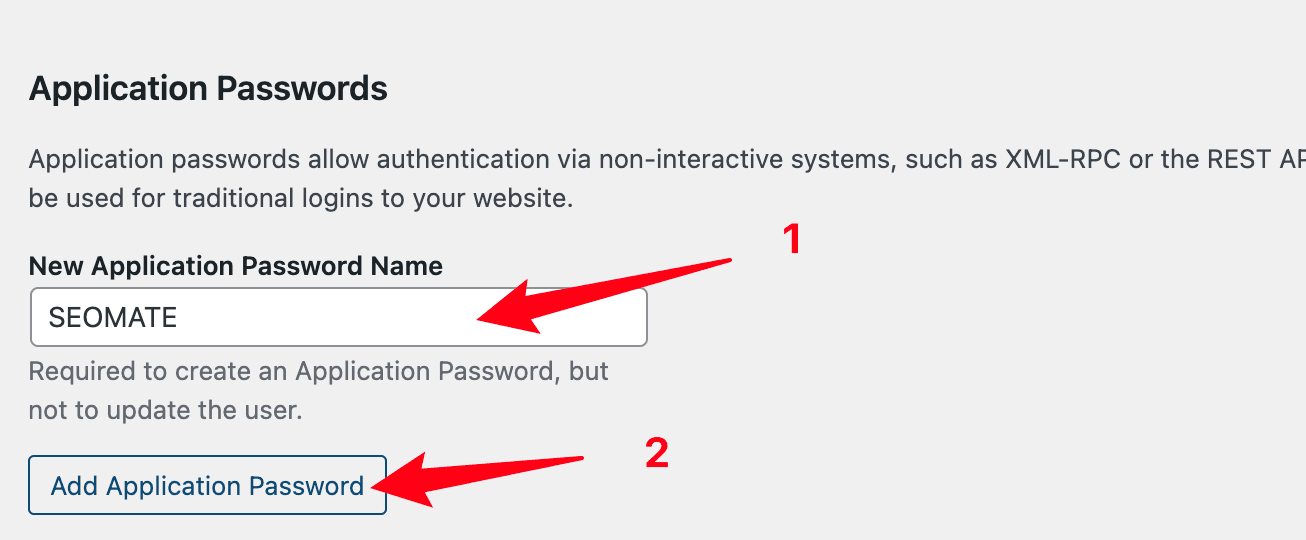
Step 3: Create Application Password
Scroll down to the Application Passwords section. Enter SEOmate as the name and click Add New Application Password.
Important: The password will only be displayed once. Make sure to copy it immediately!
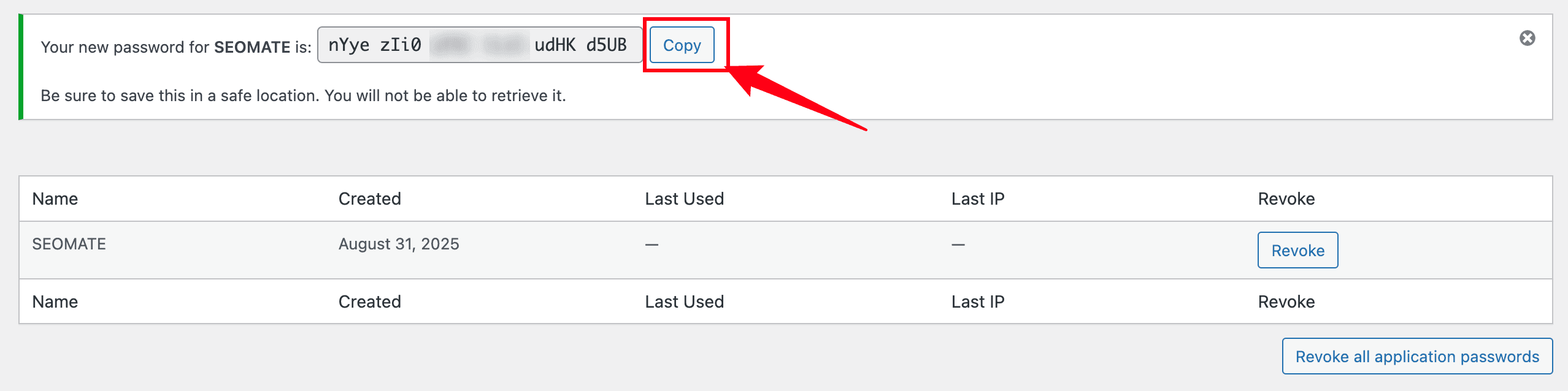
Step 4: Copy the Generated Password
Your new application password will be displayed. Copy it now - you won't be able to see it again.
Step 5: Configure in SEOmate
Add these details to SEOmate's WordPress integration:
https://your-site.com
your-admin-username
Application Password:
xxxx xxxx xxxx xxxx
After entering these details, click Test Connection to verify, then Save.
Troubleshooting
Application Password Not Available?
For development sites (HTTP), add this to wp-config.php:
define('WP_ENVIRONMENT_TYPE', 'local');
Common Connection Errors
401 Unauthorized: Check username (case-sensitive) and password
403 Forbidden: Security plugin may be blocking API access
404 Not Found: Verify site URL and check permalink settings
Ready to connect WordPress?
Follow the steps above to configure your integration and start publishing AI-generated content to your WordPress site.